Red Hat / CentOS packages
LPIC1-101LINUXCENTOSRPMYUMREDHAT
2/7/2026


Note: For simplicity, I have run the following commands from my root account.
We download a package (the rpm file):
# yumdownloader iotop
A standard RPM (binary) usually looks like this:
package-version-release.architecture.rpm
Example: gimp-2.10.18-3.el8.x86_64.rpm (The x86_64 tells you it's a binary for 64-bit CPUs).
Note: While the .rpm extension indicates that this is a Red Hat package file, this package file has el8 listed as its distribution, which is an optional item in the Red Hat package file naming standard. The el8 stands for Red Hat Enterprise Linux version 8, which means that it can be used on Red Hat Enterprise Linux (RHEL) and its current twin CentOS, version 8.
A source RPM looks like this:
package-version-release.src.rpm
Example: gimp-2.10.18-3.el8.src.rpm
To know whether a package is installed:
# rpm -q iotop
package iotop is not installed
Installing a package from its rpm file:
# rpm -iv iotop-0.6-4.e17.noarch.rpm
Preparing packages...
iotop-0.6-4.e17.noarch
Verifying the package is installed:
# rpm -q iotop
You can use the command to upgrade a package to also install it:
# rpm -Uv iptraf-ng-1.1.4-7.e17.x86_64.rpm (install or upgrade)
# rpm -q iptraf-ng (verify installation)
iptraf-ng-1.1.4-7.e17.x86_64
More queries:
# rpm -qi iotop (query-information)
(It will query its information, but not their dependencies)
Dependencies:
# rpm -qR iotop
Uninstalling a package:
# rpm -e iptraf-ng (uninstalling)
# rpm -q iptraf-ng (verifying)
# rpm -V iptraf-ng (verifying again, another way of verifying)
If you'd like to extract the files from a package file without installing them (usually done if the package file is a source file):
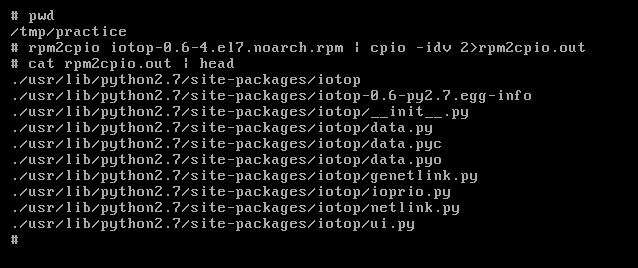
Warning: It is recommended you do this in a directory you have write permissions and it does not clutter your system, create a new directory under /tmp, for example, /tmp/practice. cpio will recreate the full system structure, so be aware of doing this in a directory that does not overwrite any files that may be in your system. The author is not responsible of any damage to your system.
# cd /tmp/practice
# rpm2cpio package-file-name.src.rpm | cpio -idv
You can save the output to a file adding to the end of the command 2>rpm2cpio.out, since the output given by cpio is not stdin, but stderr instead.
Find the full name of a package from its name and path:
# which top
/bin/top
# rpm -q --whatprovides /bin/top
procps-ng-3.3.10-27.e17.x86_64
Find where bash is installed (rpm -ql without grep) and its configuration files (with grep etc):
# rpm -ql bash | grep etc
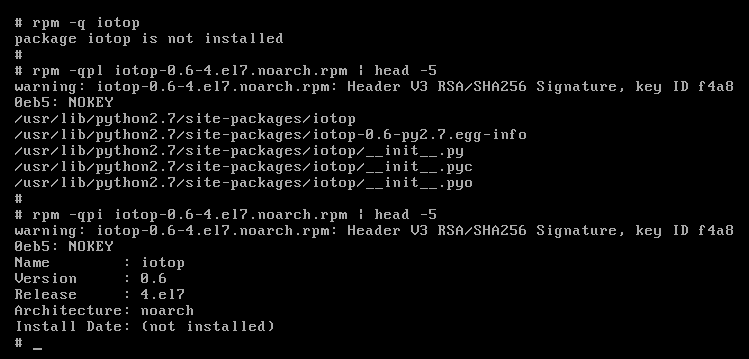
rpm -qp: Queries a Package File sitting on your disk. (Needs the full filename: rpm -qp gimp-2.0.rpm). It is useful because it tells the information about the package before installing it.
Command What it does
rpm -qpl package.rpm List files: Shows every file path contained inside that RPM.
rpm -qpi package.rpm Information: Shows the description, version, and the real "Source RPM" name.
Practice the commands above.
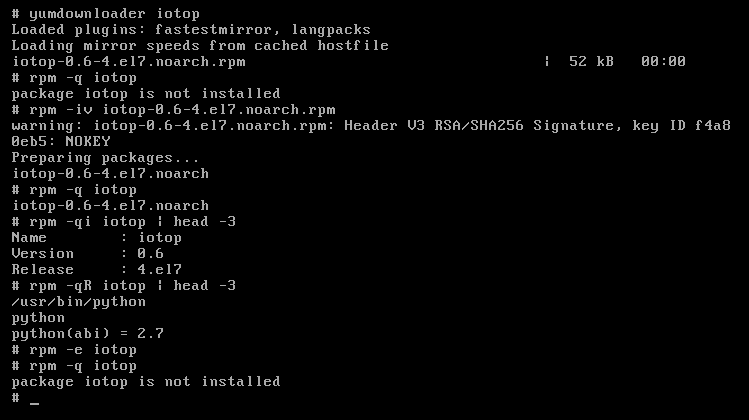
Install and query an installed package; uninstall the package:
Query a package that is not installed:
rpm2cpio command:
-d: Create leading directories where needed
'whatprovides' means the package name:
To continue learning about cpio usage, go here.

Contact
hello@unixtips.eu
© 2025. All rights reserved.