cpio, tar, gzip, bzip2, xz
LPIC1-101LINUX

Warning: cpio can overwrite the files of your system. The author is not responsible of any damage to the operating system.
tl;dr
cpio
find . | cpio -ov > archive.cpio # output, verbose
ls file? | cpio -ov > archive2.cpio
cpio -itv < archive.cpio # inspect the contents of the archive
cpio -idv --no-absolute-filenames < archive.cpio # extract the files from the archive with no absolute paths and optionally the -d flag recreates the subfolder structure if needed, it is not always necessary but in most cases it is needed, if you don’t use it, cpio will fail to recreate the structure of the paths.
tar
Creating tar files without compression:
tar -cvf
tar -tf
Extracting tar file without compression:
tar -xvf
Creating tar files with compression:
tar -zcvf (gzip) .tar.gz or .tgz
tar -jcvf (bzip2) .tar.bz2 or .tbz2
tar -Jcvf (xz) .tar.xz or .txz
Extracting tar files with compression,for example:
tar -xzvf archive.tar.gz
tar vs. cpio
tar is designed to use it with compression options. tar is the universal standard for sending files in Linux/Unix systems.
cpio is designed to work together with a pipe and the find command. Also, initramfs is created as cpio file
gzip, bzip2, xz
gunzip myfile.txt.gz or bunzip2 myfile.txt.bz2 or unxz myfile.txt.xz (decompression of a file)
zcat myfile.txt.gz or bzcat myfile.txt.bz2 or xzcat myfile.txt.xz (show the contents of a file without decompression)
Question: ls myfile? | xargs gzip, what is the output, a single file or multiple files? Multiple files. You need tar to put all the files into a single file.
------------------------------------------------------------------------------------
cpio
A couple of examples on how to create a cpio file:
$ find . | cpio -ov > archive.cpio
$ ls file? | cpio -ov > archive2.cpio
Where:
-o means output
-v means verbose
Notice that cpio may use the absolute path or the relative path of a file, depending on what was given to it. When using the absolute path there is the risk of overwriting an important file, for example, /etc/passwd.
Older Files on Disk: If the file on your computer happens to be older than the one in the archive (for example, if you're restoring a config file you recently accidentally broke), cpio will overwrite it by default because it assumes you want the "newer" version from the archive.
The --no-absolute-filenames Requirement: You have to force the command to remove those paths to be safe. If an archive has absolute paths and you forget that specific flag, you lose control over where those files land.
To get the files from the cpio file:
$ cpio -itv < archive.cpio # It will only list the contents of the cpio file
-t means table of contents (list only, doesn't actually extract the contents)
-i input
-v verbose
To actually extract your files from the cpio file:
$ cpio -iv < archive.cpio
But remember to avoid the absolute path with:
$ cpio -iv --no-absolute-filenames < archive.cpio
-d: Directories (optional here, but recommended if your archive contains subfolders so cpio can recreate them). So it would be -idv flags instead.
tar
Combine archiving (tar) with compression (gz):
$ tar -zcvf archive.tar.gz myfiles/ # '-z' is the gzip option
Only showing the contents without extracting the files:
$ tar -tvf archive.tar.gz
Extracting files (with a relative path):
$ tar -xvf archive.tar.gz
Options to create/unpack tarballs:
-z --gzip
-j --bzip2
-J --xz
That's how you name compressed files:
.tar.gz or .tgz
.tar.bz2 or .tbz2
.tar.xz or .txz
These are the different flags for just tar files (without compression):
tar -cvf (the -c flag stands for "create")
tar -tf (the -t flag stands for "list contents")
tar -xvf (the -x flag stands for "extract")
These are the three different compression modes:
tar -zcvf (gzip)
tar -jcvf (bzip2)
tar -Jcvf (xz)
tar vs cpio
1. Use tar when...
Creating manual backups: It is much easier to use because you can just point it at a directory (e.g., tar -cvf backup.tar /home/user).
Sending files to others: It is the universal standard on Linux/Unix systems.
Handling compression easily: tar has built-in flags like -z (gzip) or -j (bzip2), so you don't need pipes.
2. Use cpio when...
Dealing with "Special" files: cpio is famous for its ability to handle device files (like those in /dev) and hard links more faithfully than older versions of tar.
Creating initramfs (Boot images): This is the most common use today. The Linux kernel uses cpio to load the temporary file system used during the boot process.
Complex filtering: Because cpio takes a list of filenames from find, you can be extremely specific about what gets archived.
Example: Archiving only files modified in the last 2 days that are larger than 1MB: find . -mtime -2 -size +1M | cpio -ov > specific_backup.cpio
gzip / bzip2 / xz
If you find a compressed file, you can decompress it with:
gunzip myfile.txt.gz or bunzip2 myfile.txt.bz2 or unxz myfile.txt.xz
What would this be the output for the following commands? A single file or multiple files?:
$ touch myfile1 myfile2 myfile3
$ ls myfile?
$ ls myfile? | xargs gzip
The answer is: multiple files.
$ ls myfile*
myfile1.gz myfile2.gz myfile3.gz
If you want to wrap several files into one file, you need to use tar.
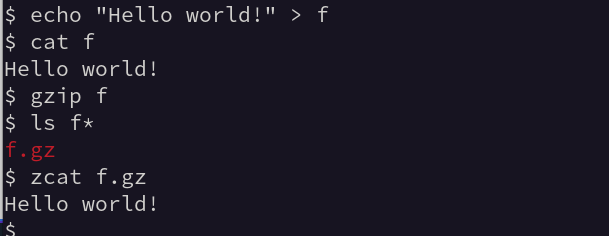
To see the contents of a compressed file without decompressing it, you can use:
gzip -> zcat
bzip2 -> bzcat
xz -> xzcat
For example, try this:
Contact
hello@unixtips.eu
© 2025. All rights reserved.