Systemd (Part 2)
TL;DR
most important unit types (for the exam) -> .service, .target, .socket, .timer, .mount
systemctl -t <type> list-units -> systemctl start apache2 -> start/stop/status
systemctl -t <type> list-unit-files -> systemctl enable/disable <unit file> ; systemctl mask/unmask <unit file>; static (it doesn't have an install section)
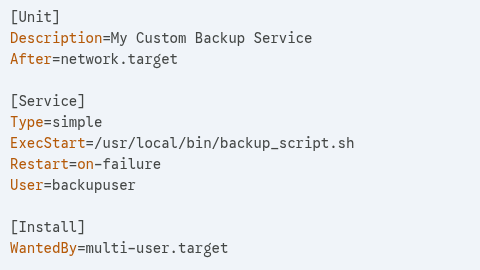
/etc/systemd/system -> systemctl cat my-backup.service -> [Unit][Service][Install]
systemctl daemon-reload -> To load changes on systemd files
/etc/systemd/system - /run/systemd/system - /usr/lib/systemd/system
-------------------------------------------------
1 Listing units and unit files
systemctl -t <type> list-units (Shows what is happening right now.) The most important units for the LPIC-1 exam are .service, .target, .socket, .timer, and .mount.
systemctl -t <type> list-unit-files (Shows what will happen after you reboot.)
2 Managing units and unit files
systemctl start/stop [units] (Starts the process / Kills the process now.)
With Services: You can usually skip the extension. systemctl start apache2 works because systemd assumes .service by default.
With other Units: You must use the extension. systemctl start backup.timer or systemctl start mnt-data.mount.
systemctl enable/disable [unit file] (The process is started at boot / The process is removed from starting at boot)
systemctl mask/unmask [unit file] (The "nuclear option." It creates a symbolic link from the service file to /dev/null. This makes it impossible to start the service (manually or automatically) until it is unmasked.)
3 States of a unit file
enabled: The unit will start automatically when its target is reached.
disabled: The unit will not start automatically, but it can be started manually or by another service.
static: The unit doesn't have an "install" section. It usually only runs if another service specifically needs it.
masked: The "Super Disabled" state. It cannot be started, even manually.
4 -t service list-unit-files vs. list-unit-files
1. systemctl list-unit-files
This command shows you every single unit file that systemd can find on your hard drive (in /lib/systemd/system/, /etc/systemd/system/, etc.).
Scope: Huge. It includes services, mounts, timers, sockets, targets, and paths.
Focus: It tells you if a service is enabled (starts at boot), disabled, or masked (totally blocked).
2. systemctl -t service list-unit-files
The -t service flag tells systemd: "Only show me files that end in .service." This is much cleaner if you are specifically looking for background daemons (like ssh, apache, or cron) and don't want to see 50 different mount or device files.
5 The Anatomy of a Unit File
If you were to create a service for a simple script that creates backups, it would look like this. These files are typically stored in /etc/systemd/system/.
Use systemctl cat my-backup.service to see the anatomy of a unit file:
6 Basic commands for units
systemctl daemon-reload: You must run this every time you edit a unit file, or systemd won't see the changes.
systemctl enable --now my-backup.service: This is a pro-tip shortcut. It "enables" it (to start at boot) and "starts" it (right now) in one go.
systemctl status my-backup.service: This shows you the process state, the last few lines of logs (from journald), and the Main PID.
7 Filter by mount units
systemctl -t mount list-units: This command is a specific way to filter and view how your Linux system is managing storage and partitions through systemd. In modern Linux distributions, systemd doesn't just manage services (like your web server or database); it also manages mount points. When you run this command, you are asking the system to:
-t mount: Filter the results to show only unit files of the "mount" type.
list-units: Display the current status of those units (whether they are active, waiting, or failed).
You might be used to the traditional mount command, but systemctl provides a different perspective:
Dependency Tracking: It shows you if a drive failed to mount and if that failure is preventing other services from starting.
Unit Names: You'll notice the output looks like home.mount or media-backup.mount. These names follow the file path (e.g., /home becomes home.mount, and /var/log becomes var-log.mount).
Real-time Status: It tells you if the system thinks the drive should be there, even if it isn't currently plugged in.
If you are troubleshooting why a disk isn't appearing or why your boot process is hanging, this command is faster than digging through logs. It pinpoints exactly which specific mount point is causing the "red" error state in your system's startup sequence.
8 Troubleshooting a system that won't shutdown
If you ever find yourself in a situation where the system refuses to power off because a service is "hung" or stuck, you can sometimes force it by adding a second "force" flag: systemctl poweroff -f
9 Where systemd lives
1. /usr/lib/systemd/system (The Defaults)
This is where the system-provided unit files live. You should never edit files in this directory.
2. /run/systemd/system (The Temporary)
This directory is stored in RAM. It’s used for processes that only need to exist for the current session.
3. /etc/systemd/system (The Customizations)
This is the most important path for a System Administrator. This is where you put your own custom unit files or where systemctl enable creates symbolic links. This directory has the highest priority. If a file with the same name exists in both /etc and /usr/lib, systemd will ignore the one in /usr/lib and use yours instead. This is the place for permanent, user-defined configurations.
Summary Table
Path Persistence Purpose Priority
/etc/systemd/system Permanent Admin changes & custom units 1 (Highest)
/run/systemd/system Until Reboot Runtime/Dynamic units 2
/usr/lib/systemd/system Permanent Vendor/Package defaults 3 (Lowest)
if a question mentions transient units, dynamic unit generation, or asks why a unit doesn't persist after reboot — /run/systemd/system/ is the answer. (It is usually empty unless a transient unit is created).
Contact
hello@unixtips.eu
© 2025. All rights reserved.