screen and tmux. ps command.
LPIC1-101LINUX
2/25/2026
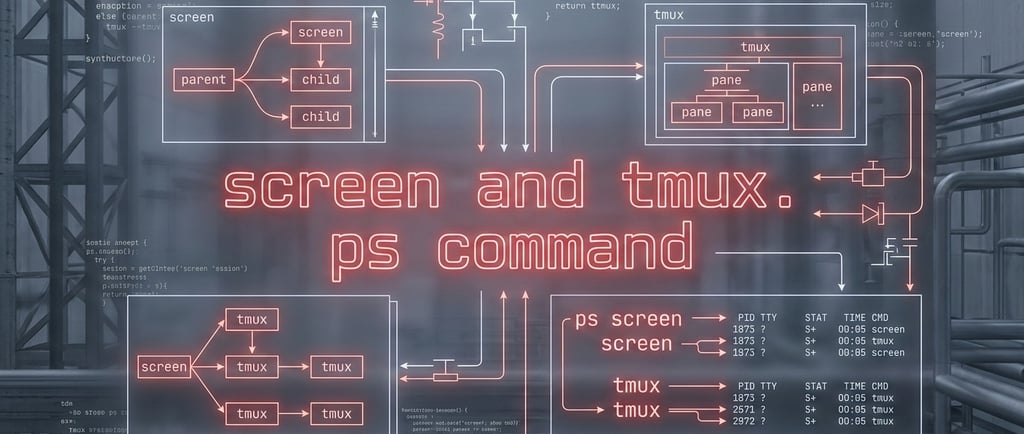
screen and tmux
Think of them as a "Virtual Terminal Server" that lives on your machine (usually a remote server) and stays active even if you lose your internet connection.
1. Persistence (The "Don't Panic" Feature)
The biggest selling point is Session Persistence.
Without Tmux: You are SSH'd into a server, running a complex update. Your Wi-Fi drops. The SSH connection breaks, sends a SIGHUP signal, and your update potentially crashes halfway through.
With Tmux: You start a session. Your Wi-Fi drops. The SSH connection breaks, but the Tmux session stays "alive" on the server. You reconnect, type tmux attach, and you are exactly where you left off—cursor position and all.
2. Window & Pane Management (The "Multiplexer" Part)
This is where the name comes from. Instead of opening 5 different SSH windows on your desktop, you open one and split it.
Panes: Split your screen horizontally or vertically. You can have your code on the left and your logs running on the right.
Windows: Like tabs in a browser. You can have one "window" for your text editor and another for your database console, switching between them with a keystroke (e.g., Ctrl+b then n).
3. Collaboration (The "Over My Shoulder" Feature)
Two people can attach to the same Tmux session simultaneously.
If I type a command, you see it appear on your screen in real-time.
This is incredibly useful for remote pair programming or troubleshooting a server with a colleague without having to share your actual desktop screen.
4. Practice the following commands
Feature GNU Screen tmux
Prefix Key Ctrl+a Ctrl+b
New Window Ctrl+a, then c Ctrl+b, then c
Detach Ctrl+a, then d Ctrl+b, then d
Re-attach screen -r tmux attach
List Sessions screen -ls tmux ls
Split screen Ctrl + a, then Shift S
Change focus Ctrl + a + tab key
Sometimes, if a server crashes or a process hangs, screen -ls will show a session marked as (Dead) or (Remote detached). These are just leftover socket files. You can clean those up with: screen -wipe
Goal The "Mnemonic" Command
Split Vertically Think of the % sign as a vertical divider. Ctrl+b then %
Split Horizontally Think of the " as two horizontal eyes. Ctrl+b then "
Move Just use the arrows. Ctrl+b then ↑ ↓ ← →
Go Full Screen Z for "Zoom" in and out. Ctrl+b then z
ps command
GNU long options have two dashes: ps --tty tty2
Unix-style options have a single dash: ps -elf # long format
Berkley software distribution (BSD) options have no dashes: ps aux
You can customize the columns of the ps output, for example,
$ ps -e -o pid,ppid,stat,cmd
The meaning of ps columns:
column: 1 = it forked, 4 = it used superuser privileges, 0 = none of them, 5 = both of them
column: R = running, S = sleeping, D = uninterruptible sleep, T= stopped, Z = zombie
A Note on "Unkillable" Processes
Keep an eye out for processes in the "D" state (Uninterruptible Sleep) when you run top or ps.
The "D" State: These processes are usually waiting on I/O (like a failing hard drive or a hung network mount).
The Catch: Even kill -9 cannot kill a process in the "D" state because it's waiting for the kernel to finish a hardware task. In those rare cases, your only choice really is a reboot.
Contact
hello@unixtips.eu
© 2025. All rights reserved.