screen and tmux, and the ps command
LPIC1-101LINUX
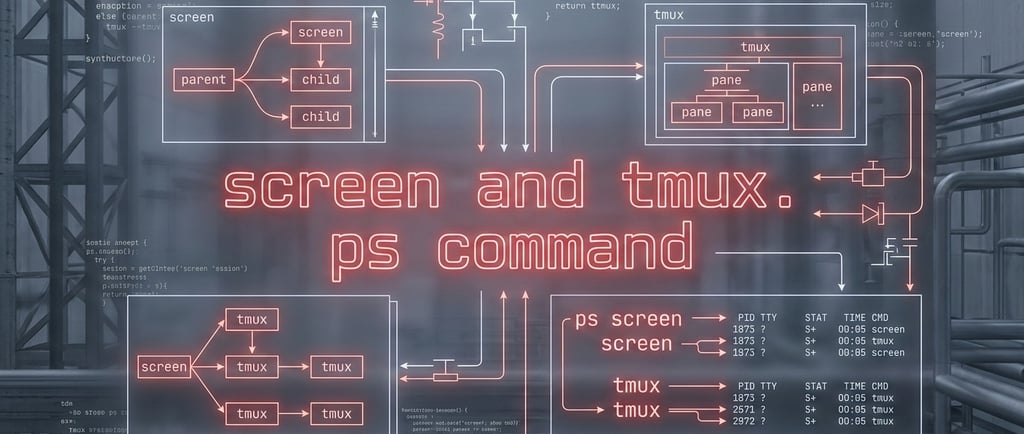
screen and tmux
Think of them as a "Virtual Terminal Server" that lives on your machine (usually a remote server) and stays active even if you lose your internet connection.
1. Persistence (The "Don't Panic" Feature)
The biggest selling point is Session Persistence.
2. Window & Pane Management (The "Multiplexer" Part)
This is where the name comes from. Instead of opening 5 different SSH windows on your desktop, you open one and split it.
Panes: Split your screen horizontally or vertically. You can have your code on the left and your logs running on the right.
Windows: Like tabs in a browser. You can have one "window" for your text editor and another for your database console, switching between them with a keystroke (e.g., Ctrl+b then n).
3. Collaboration (The "Over My Shoulder" Feature)
Two people can attach to the same Tmux session simultaneously.
If I type a command, you see it appear on your screen in real-time.
This is incredibly useful for remote pair programming or troubleshooting a server with a colleague without having to share your actual desktop screen.
4. Practice the following commands
Prefix keys
Tool Prefix
screen Ctrl-a
tmux Ctrl-b
Sessions
Action screen tmux
Start new named session screen -S upgrade tmux new -s upgrade
List sessions screen -ls tmux ls
Detach from session Ctrl-a d Ctrl-b d
Reattach to named session screen -r upgrade tmux attach -t upgrade
Reattach to only session screen -r tmux attach
Reattach to unnamed session screen -r PID tmux attach -t 0 (integer name)
Multiuser / sharing
Action screen tmux
Enable sharing :multiuser on not built-in; relies on same user
(inside session) or socket permissions
Grant another user access :acladd user_name n/a
Join a session (same user) screen -x tmux attach -t upgrade
Panes / regions
Action screen tmux
Split horizontally (stacked) Ctrl-a S Ctrl-b "
Split vertically (side by side) Ctrl-a | Ctrl-b %
Move to next region/pane Ctrl-a Tab Ctrl-b + arrow
Start shell in new region Ctrl-a c (required) automatic
Sometimes, if a server crashes or a process hangs, screen -ls will show a session marked as (Dead) or (Remote detached). These are just leftover socket files. You can clean those up with: screen -wipe
To fully close (terminate) a session, rather than just detach from it: exit works the same way in both tools — it closes the current shell, and if that's the last window in the session, the whole session terminates. This is the most common way to close a session.
ps command
GNU long options have two dashes: ps --tty tty2
Unix-style options have a single dash: ps -ef
Berkley software distribution (BSD) options have no dashes: ps aux
You can customize the columns of the ps output, for example,
$ ps -e -o pid,ppid,stat,cmd
The meaning of ps columns:
column STAT in ps aux: R = running, S = sleeping, D = uninterruptible sleep, T= stopped, Z = zombie
column TIME in both ps -ef and ps aux is exam-relevant (103.5, process monitoring column).
It's the cumulative CPU time the process has actually consumed since it started — not wall-clock time since launch, but actual processor time used (format HH:MM:SS or MM:SS).
Key distinction for the exam:
TIME = actual CPU seconds consumed (usually stays near 00:00:00 for idle/sleeping processes, since they aren't using the CPU)
START/STIME = the wall-clock time the process was launched
A Note on "Unkillable" Processes
Keep an eye out for processes in the "D" state (Uninterruptible Sleep) when you run top or ps aux.
The "D" State: These processes are usually waiting on I/O (like a failing hard drive or a hung network mount).
The Catch: Even kill -9 cannot kill a process in the "D" state because it's waiting for the kernel to finish a hardware task. In those rare cases, your only choice really is a reboot.
Contact
hello@unixtips.eu
© 2025. All rights reserved.